How to customize your reminder messages
A generic reminder doesn't hit the same as one written in your business's tone. With RicordamiApp you can customize every message so it sounds like you, not like a robot.
Available reminder types
You can choose between two types of messages for your reminders:
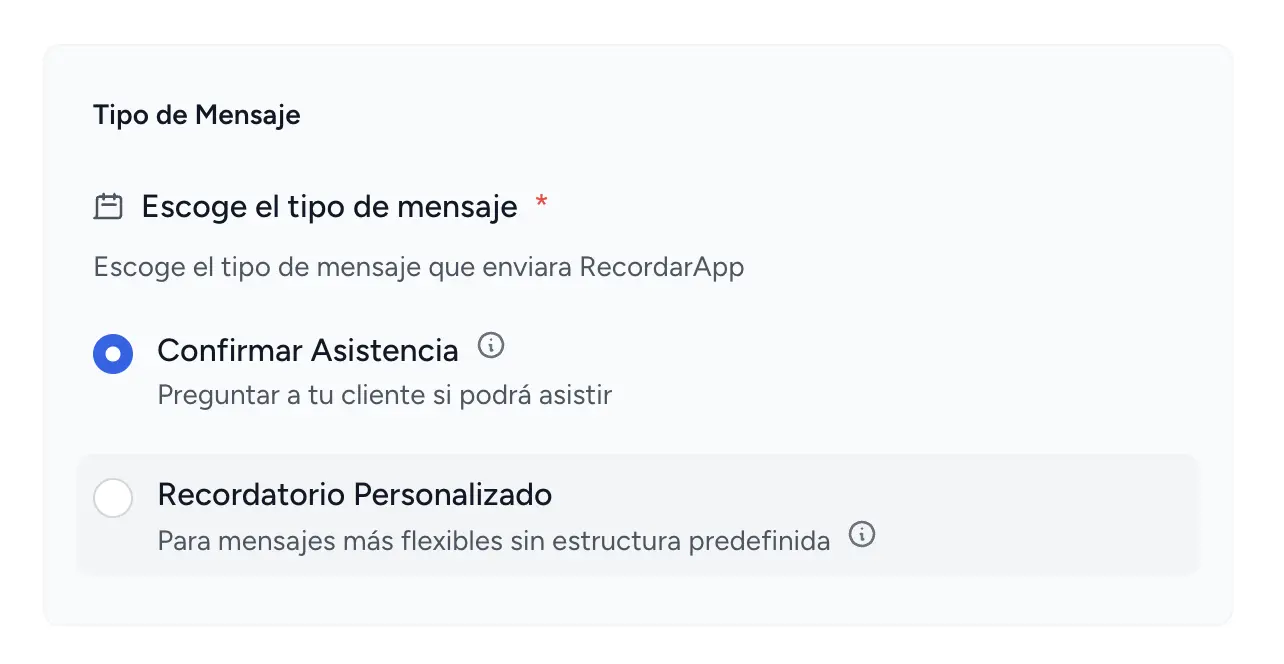
1. Attendance confirmation
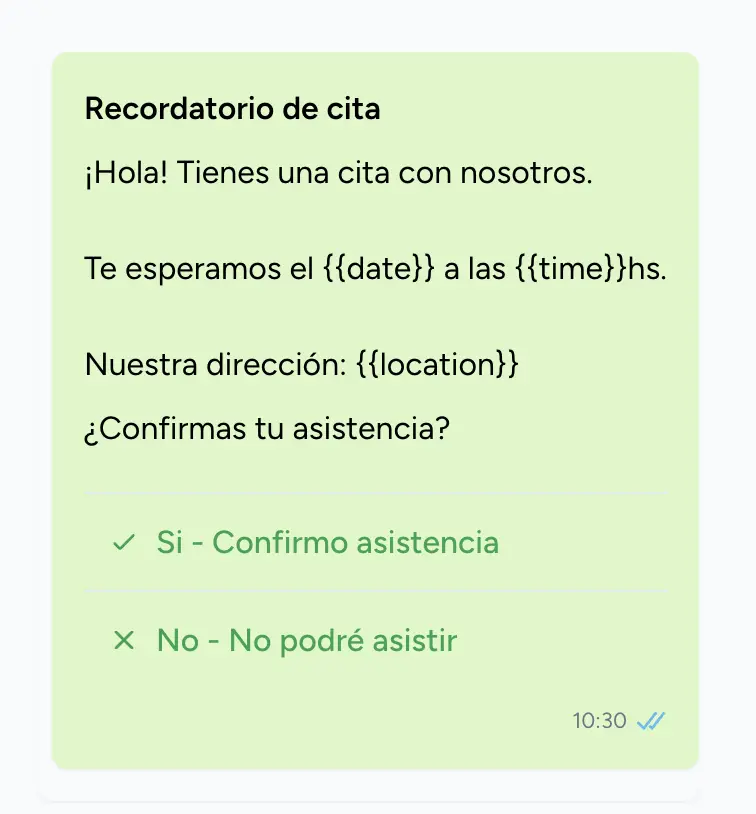
This message type includes two buttons that let your client quickly confirm or cancel their appointment.
When to use it: When you need to know whether the client will attend, for appointments where cancellations affect your schedule, or when you want to reduce no-shows.
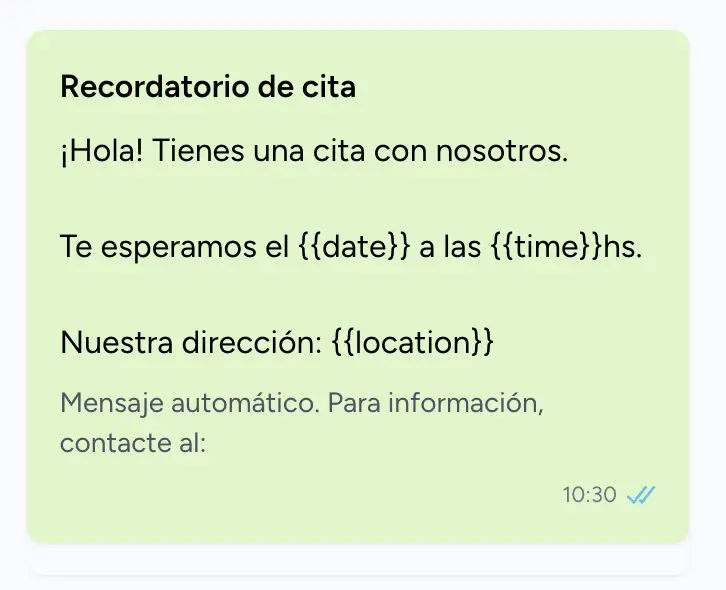
2. Custom reminder
A free-form message with no predefined structure. You write whatever you want.
When to use it: For simple informational messages, when you want to include specific instructions, or for reminders with a more personal, conversational tone.
Message customization
Each reminder type lets you customize two elements:
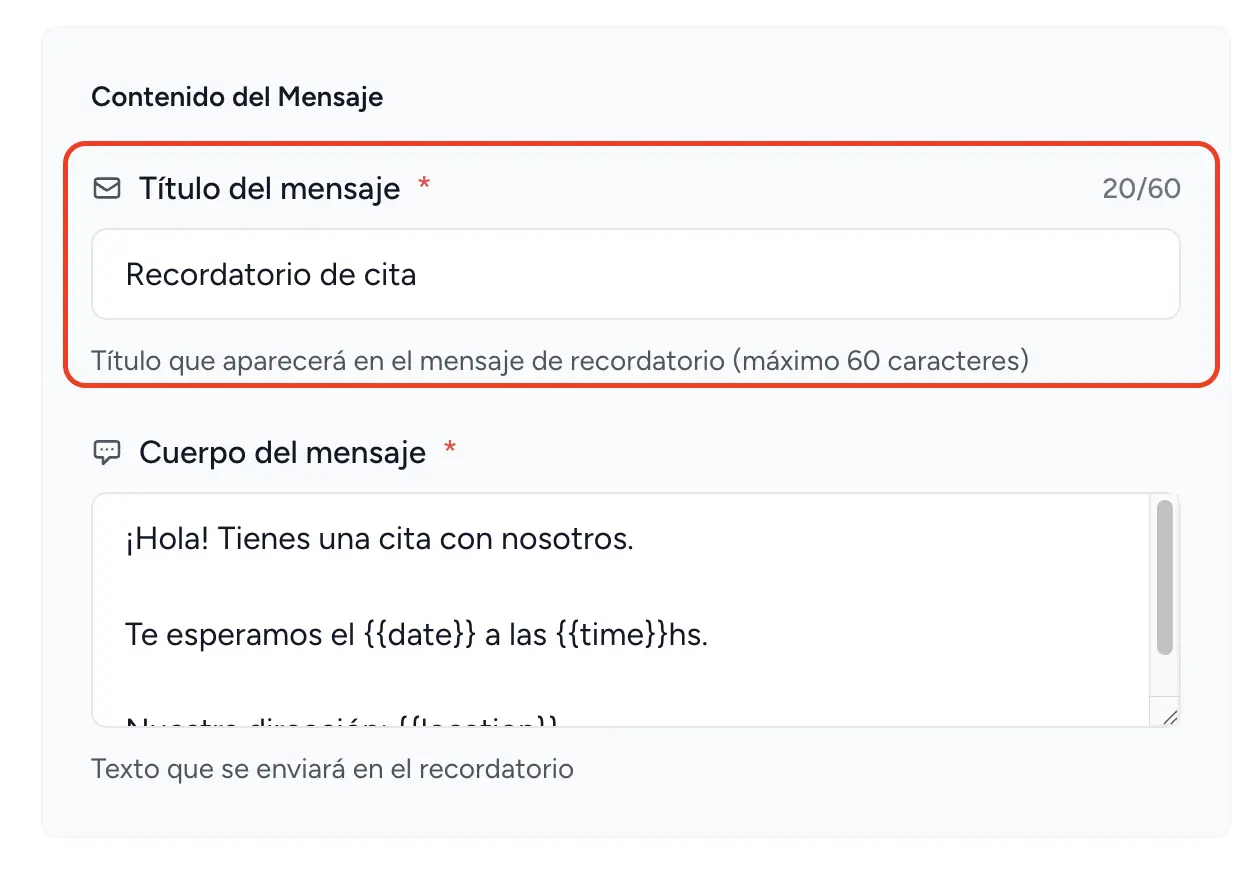
Message title
This is the first line your client sees. Keep it clear and direct.
Examples: "Appointment Reminder", "We'll See You Tomorrow", "Your Appointment Confirmation"
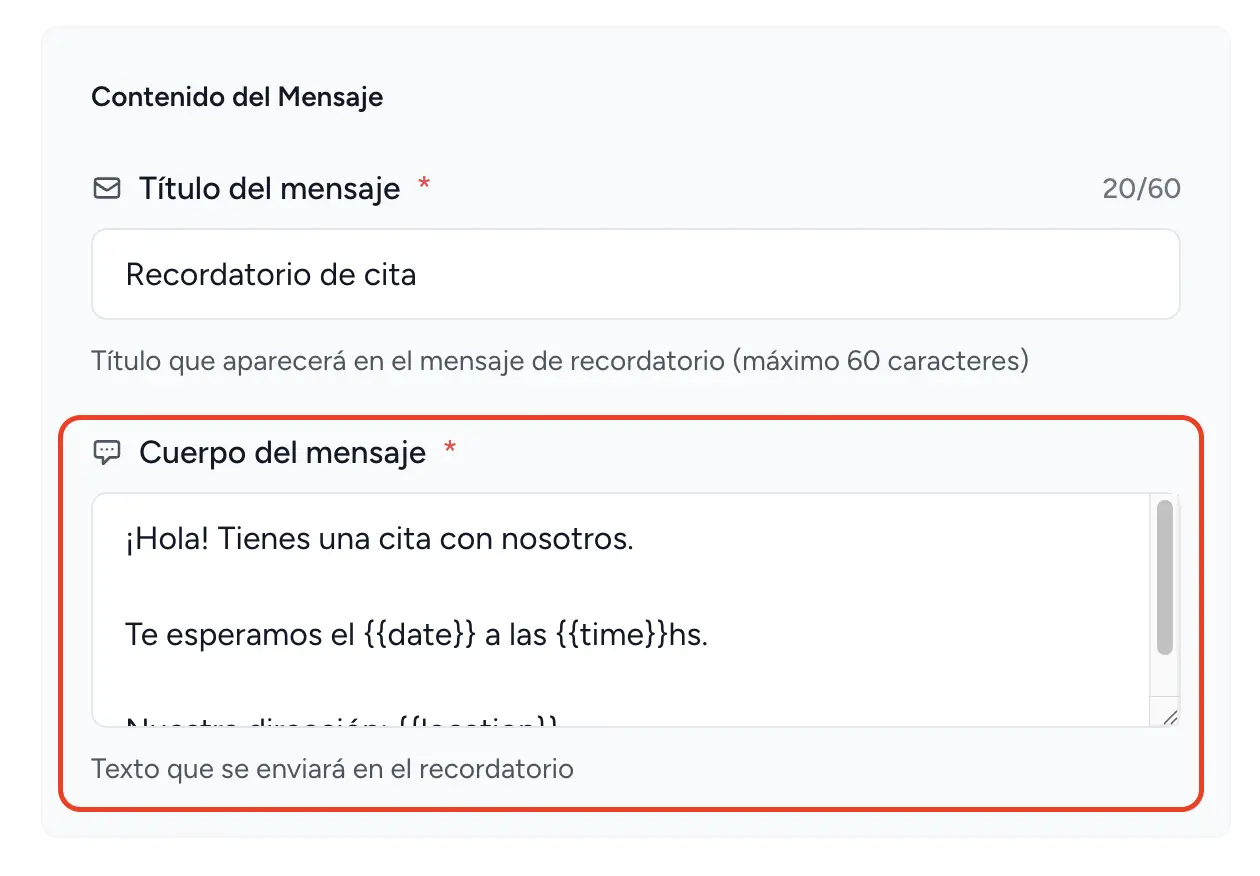
Message body
This is where you include the details your client needs.
Automatic variables
Variables are placeholders that get replaced with the actual details of each appointment. They save you from manually typing the date and time into every message.
Available variables:
{{subject}}
Replaced with the event name
Example: "Haircut"
{{date}}
Replaced with the event date
Example: "March 15, 2026"
{{time}}
Replaced with the event time
Example: "2:30 PM"
{{location}}
Replaced with the event location
Example: "123 Main Street, Suite 5"
How to use variables
- Write your message normally
- Where you want appointment details to appear, insert a variable
- Variables always go inside double curly braces: {{variable}}
Practical example:
What you write:
If you need to reschedule, please contact us at least 24 hours in advance.
See you at {{location}}.
What the client receives:
If you need to reschedule, please contact us at least 24 hours in advance.
See you at Smile Dental Clinic, 45 Main Street.
Tips for effective messages
Best practices:
- Be clear and direct - Your client should immediately understand what the message is about
- Include the basics - Date, time, and location are the must-haves
- Match your tone - Use language that reflects your business personality
- Add helpful instructions - Such as what to bring or how to get there
Recommended structure:
- Personal greeting
- Appointment details (using variables)
- Additional instructions (if needed)
- Contact details (optional)
{{subject}} - {{date}} at {{time}}
Location: {{location}}
Please arrive 10 minutes before your scheduled time.
See you there!
If you'd rather not start from scratch, try our reminder message generator: type in your business type and in seconds you'll have a message ready to copy and use.
Step-by-step setup
- Go to the reminder settings in your RicordamiApp dashboard
- Choose the reminder type that fits your needs
- Customize the title with a short, clear header
- Write the message body, using variables where you need appointment details filled in automatically
- Save your changes. Your new template is ready to use
Industry-specific examples
For message examples tailored to different businesses (beauty salons, medical offices, workshops, etc.), see our article:
WhatsApp appointment reminders →