The online booking software with automatic WhatsApp reminders

Create your business booking page and share the link. Clients pick a date and time from the slots you set — no phone calls and no app to download.

Before every appointment the WhatsApp reminder goes out on its own. If a client cancels, the slot frees up again in your calendar.

Create your booking page

Free trial · No credit card

Your personal link

With your logo and your colors

Synced with Google Calendar

How many messages does it take to book one appointment?

Without a booking page

“Can you do Thursday at 3?”

“No, Thursday doesn't work. Friday?”

“Friday's full. Saturday morning?”

“I'll let you know…”

Every appointment is a back-and-forth of messages and phone calls, often while you're busy with another client. And after all the effort to squeeze it in, they still end up forgetting.

With your booking page

You send a link. The client sees only the times that are actually free, picks the one that works and leaves their name and phone number. You keep working.

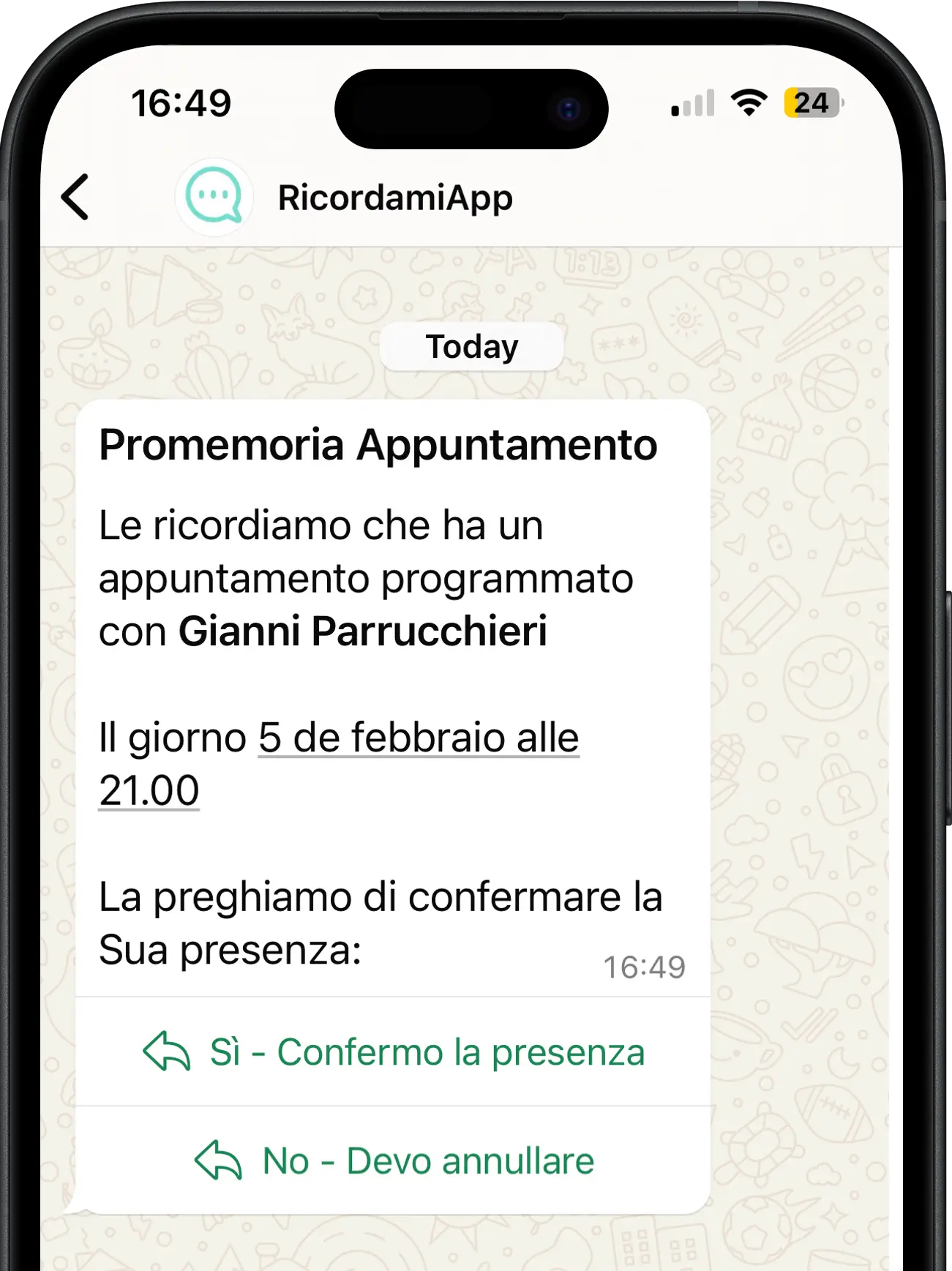
The WhatsApp reminder goes out on its own before the appointment

If the client needs to reschedule or cancel, they do it themselves from the link in the message

Every booking shows up in your calendar, alongside the appointments you create yourself

How it works

How the booking software works

Your business's online booking calendar in 4 steps.

Your page

Step 1: Create your booking page in minutes

Set the days and times you're available for booking — including a lunch break and split shifts — and mark your holiday closures. Choose how long an appointment lasts and how often to offer a slot, for example every 15 or 30 minutes.

Add your logo, your color and a welcome message. The result is a page that looks like your business, with a link of your own, such as ricordamiapp.com/p/bright-studio
The link

Step 2: Share the link where clients find you

Put it in your Instagram bio, on your website, in your Google profile, or send it straight over WhatsApp to whoever asks for an appointment.

It's always the same link: clients find it again whenever they need it, including next time.

The booking

Step 3: The client books on their own

They open the link, see only the days and times that are actually free, pick the one that works and leave their name and phone number. No sign-up, nothing to download: it works from the phone's browser.

The booking lands in your calendar right away and that slot stops being bookable. You don't have to do a thing.

WhatsApp does the rest

Step 4: The reminder arrives, on its own

Before the appointment the client gets the automatic WhatsApp reminder, with the date, time and your business name: the same one RicordamiApp already sends for the appointments you create yourself. You can personalize the text or use the one we suggest.

WhatsApp has a 94% open rate: the message actually gets read.

The message also includes a link to reschedule or cancel. If the client cancels, the slot goes back to free and bookable.
Your schedule, your rules

Online booking software that doesn't take away your control

You decide how, when and how much can be booked. Everything is set from your page's settings.

Automatic confirmation or manual approval

Prefer to take a look first? Turn on approval: you get an email for every request, and the booking only enters your schedule once you say yes.

Cancellations within the limits you set

The client can always cancel or reschedule, only up to a certain number of hours before (from 1 to 72), or never. No more cancellations ten minutes before.

A break between one appointment and the next

Need time to tidy up, travel or just catch your breath? Set a buffer after each appointment and the page won't offer back-to-back slots.

How far in advance clients can book

From 1 to 365 days. You avoid both the bookings for tomorrow morning you can't handle and the ones for next year.

More than one client in the same slot

See several people at once? Set how many appointments can overlap in the same slot: the page stops offering it once it's full.

Real hours, not theoretical ones

Split shifts, a lunch break, closed on Thursday afternoons, two weeks off in August: the page only shows the times you're actually there.

Google Calendar

Already using Google Calendar? Even better

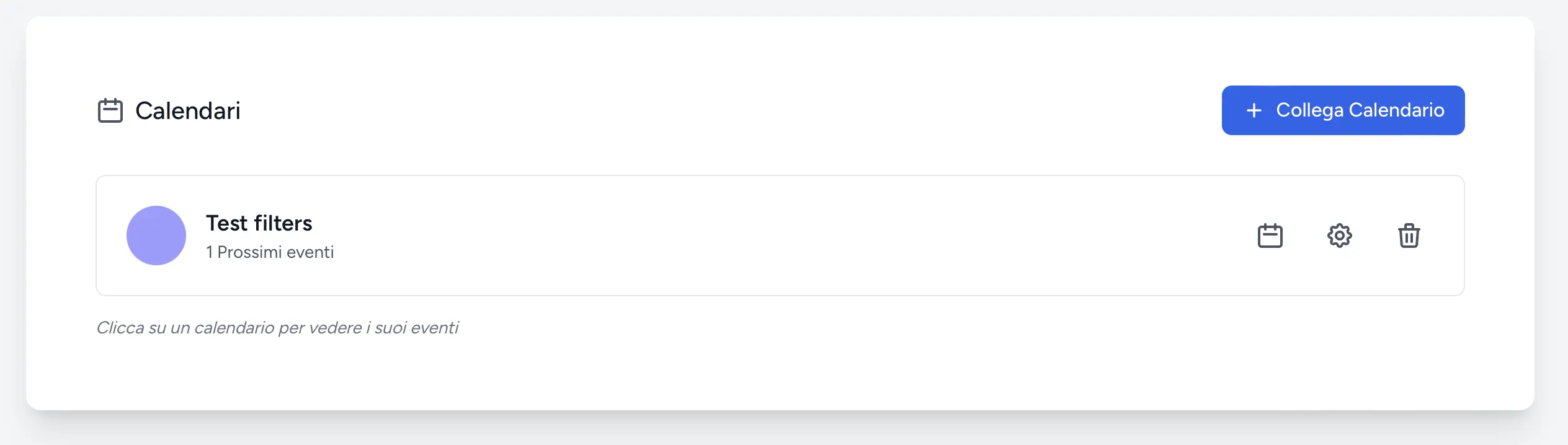
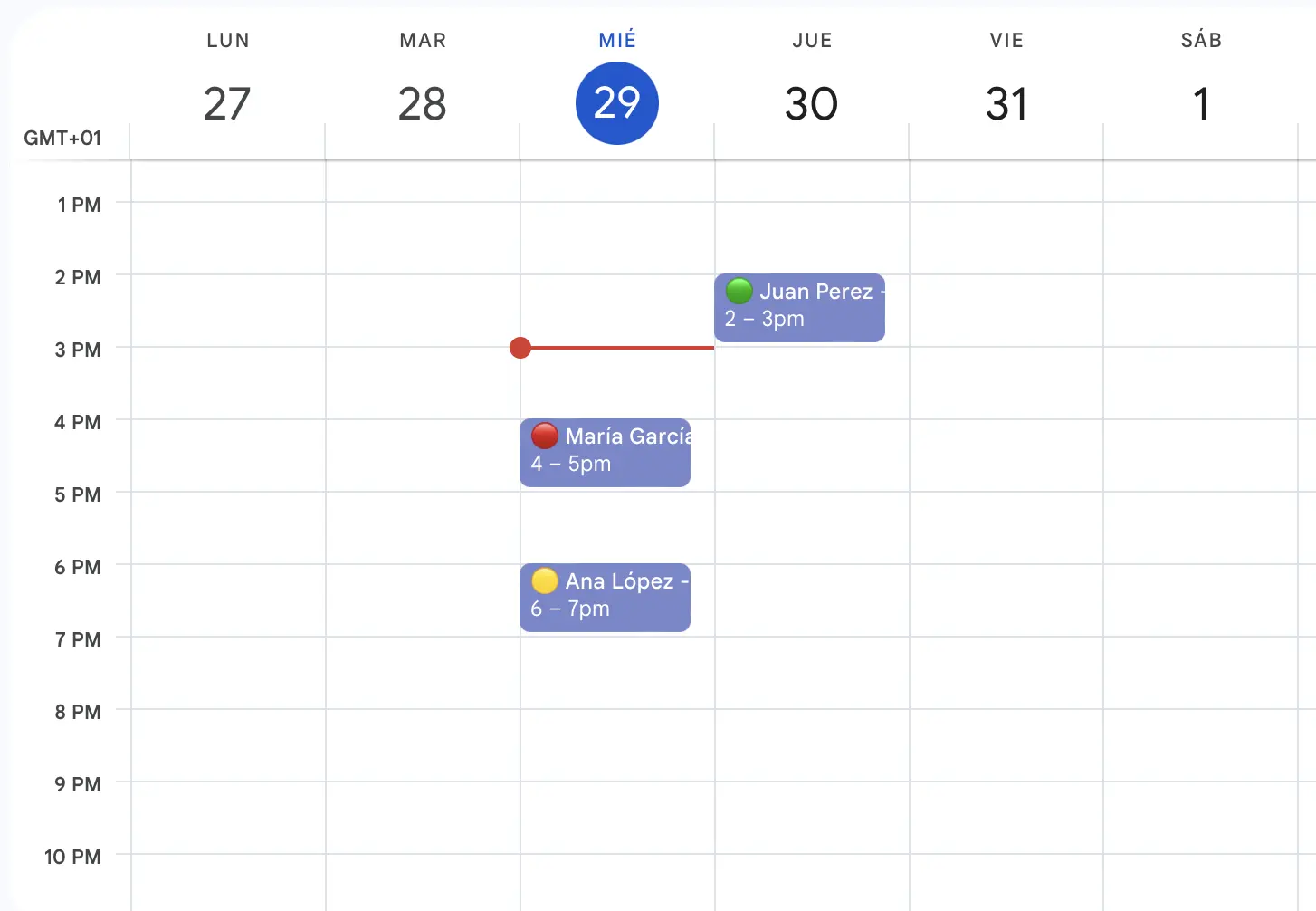
Online bookings can show up on your Google Calendar too, so you keep looking at your schedule where you've always looked at it.

It works the other way around as well: if you have something on your Google Calendar, those times disappear from the booking page. No client can book while you're at the dentist.

And the appointments you take by phone or in person? You keep creating them just like before, in the app or on Google Calendar: the WhatsApp reminders go out for everyone, booked online or not.

Let your clients book while you work

Create the page, set your hours and share the link. The WhatsApp reminders are already included.

No credit card

Frequently asked questions

How does online booking work for the client?

They open your link, pick a day and time from the free slots and leave their name and phone number (you can ask for their email too). No app to download, no account to create. Before the appointment they get the WhatsApp reminder with all the details and a link to manage the booking.

Can I decide when I'm available for booking?

Yes, day by day. You set your opening hours — split shifts included — the length of appointments, the break between one and the next, and how far in advance clients can book (from 1 to 365 days). One-off closures, like holidays, are added with a start and end date and disappear from the page.

Can the client reschedule or cancel on their own?

Yes, from the link they get in the WhatsApp reminder, but within the limits you set: always, up to a certain number of hours before, or never. When they cancel, the slot goes back to free on the page right away.

Do I have to accept every booking?

No. With manual approval every request reaches you by email and stays pending until you confirm it: the booking enters your schedule and the reminder goes out only after your yes. If you prefer, leave automatic confirmation on and you don't have to do anything.

Does it work with Google Calendar?

Yes, in both directions: the software copies bookings to your Google Calendar, and your Google commitments can block the matching times on the booking page. Both options are turned on with a switch.

How much does it cost?

The booking page is part of RicordamiApp. You start with the free trial, no credit card: you create the page, share it and see how it works with your real clients before deciding.

Is there free booking software?

A lot of "free" booking software is free until you need the things that matter: the reminders, your logo, the Google Calendar connection. We prefer to be upfront: RicordamiApp is free to try, no credit card, with the full booking page. Then, if it saves you more time than it costs, you keep it.