Automatic WhatsApp appointment reminders: how to set them up and reduce no-shows
If you manage appointments, shifts, or meetings with clients, you already know: no-shows are a constant problem. Every client who doesn't show up is lost revenue and a schedule gap you can't fill. The fix is straightforward — automatic WhatsApp reminders. You set the rules once, and scheduled messages reach your clients at the right time without you lifting a finger.
What are automatic WhatsApp reminders?
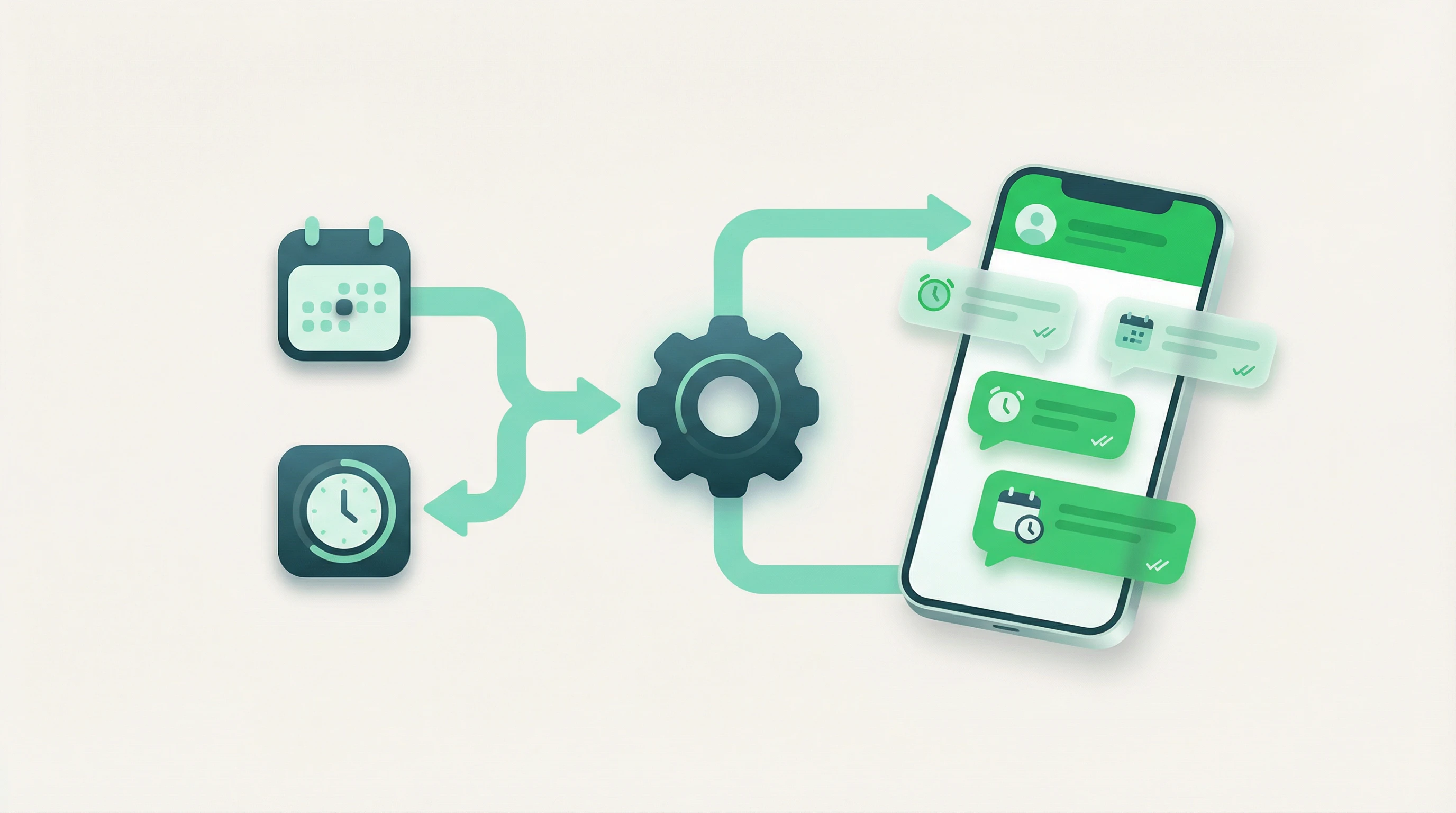
An automatic WhatsApp reminder is a message sent on a schedule to a client through WhatsApp, without manual intervention. You define the rules once (who to send to, when, and what to say) and the system handles the rest. For example: 24 hours before a scheduled appointment, the client receives a message with the date, time, and address.
Compare that to manual reminders, where you open WhatsApp, search for each contact, write the same message for the tenth time, and hit send. An automatic reminder fires as soon as a condition is met. No forgetting, no errors, no time wasted on tasks a machine does better.
How are they different from other types of reminders?
To understand the value of WhatsApp reminders, it helps to compare them with the alternatives:
- Manual WhatsApp reminder: You write and send each message individually. It works for 5 appointments a day, but with 15 or 20 you're spending more than 30 minutes daily just copying, pasting, and sending. Not sustainable.
- SMS reminder: Automatable, but at a cost of $0.03–$0.10 per message. With 30 daily appointments, that's $27–$90 per month. Many users also associate SMS with spam.
- Email reminder: Free and easy to automate, but open rates sit around 20–25%. Your reminder ends up buried among dozens of emails or lands in spam.
- Phone call: Personal, but costly in time. Many clients don't answer calls from unknown numbers.
WhatsApp reminders combine high open rates (over 95%), the personal feel of a phone call, near-zero cost, and two-way communication. Your client receives the message, reads it within minutes, and can reply directly.
Why WhatsApp is the best channel for reminders
WhatsApp is the dominant messaging app in many countries, with a penetration rate above 90% among smartphone users. Beyond the user base, it has concrete advantages for reminders:
- Open rate above 95%: Compared to 20–25% for email. Your reminder doesn't just arrive — it gets read.
- Read in under 3 minutes: 95% of WhatsApp messages are read within the first 3 minutes. An email can wait hours or days.
- Two-way communication: The client can reply directly to confirm, cancel, or reschedule. No calls, no forms, no extra apps.
- Support for links and files: Include payment links, Google Maps locations, or PDF documents so the client arrives prepared.
- Free for the recipient: Unlike SMS, your client pays nothing to receive the reminder.
- No extra installation: The message arrives in the same app where your client already talks with family and friends. Zero friction.
For appointment reminders, no other channel matches WhatsApp on reach, speed, and response rate.
What are automatic WhatsApp reminders used for?
Medical appointments are the most well-known example, but the use cases go well beyond healthcare. If you need someone to remember something at a specific date and time, it's a candidate for an automatic reminder.
Appointment and shift reminders
The most common use case. Clinics, beauty salons, veterinary practices, law firms, and any appointment-based business can send reminders to reduce no-shows. No-shows represent 20–30% of appointments in many sectors, and a WhatsApp reminder sent 24 hours in advance can cut that by 35–50%. If you have 10 absences per week, reminders bring that down to 5 or 6. For more on this, see our guide on WhatsApp appointment reminders or the article on how to reduce client no-shows.
Payment reminders
Monthly installments, overdue invoices, pending fees. A WhatsApp payment reminder notifies the client before the due date (or after, if overdue) so they don't forget to pay. You can include the amount, description, and a direct payment link. For templates, see our article on WhatsApp payment reminders.
Event, class, and workshop reminders
If you organize events, courses, workshops, or group classes, an automatic reminder ensures participants remember the date, time, and location (or video call link). It's especially useful for recurring classes where students may lose track of their next session. You can also send reminders to multiple people for group events.
Attendance confirmations
One step beyond a simple reminder: the message asks the client to respond. By asking them to confirm, you create a commitment that further reduces no-shows. For confirmation strategies, see our guide on confirming appointments via WhatsApp.
Post-service follow-up
After an appointment, you can send an automatic message to thank the client, request feedback, remind them of their next appointment, or suggest a related service. This type of follow-up message strengthens the client relationship and can increase retention by 15–30%.
Methods for sending automatic WhatsApp reminders
There are three main approaches, each with its own trade-offs.
Option 1: WhatsApp Business (semi-manual)
WhatsApp Business is the free version of WhatsApp for small businesses. It includes useful tools, but does not allow sending scheduled reminders automatically.
What it does offer:
- Quick replies: Text shortcuts to send predefined templates by typing a command like
/reminder. They save time, but you still initiate each conversation manually. - Automatic messages: Sent when someone messages you (welcome and away messages), but they don't work for sending proactive reminders.
- Welcome message: Automatically greets new clients, but it's not an appointment reminder.
Verdict: A fine starting point for businesses with fewer than 5 daily appointments, but it doesn't solve scheduled automatic reminders.
Option 2: WhatsApp Business API (for large enterprises)
The WhatsApp Business API is Meta's official solution for sending messages at scale, including scheduled reminders to thousands of contacts.
The barriers:
- Requires Meta approval and a business verification process.
- You need an official provider (BSP) such as Twilio or 360dialog, with their own monthly costs.
- Cost per message: $0.03–$0.08 per notification sent.
- Technical setup: requires programming knowledge or a developer.
Verdict: Good for large enterprises with technical teams and high volume (hundreds or thousands of daily messages). For small and mid-sized businesses, the complexity and cost are disproportionate.
Option 3: Specialized apps like RicordamiApp
The most practical option for most businesses: applications built specifically to send automatic WhatsApp reminders without the official API or technical knowledge.
RicordamiApp offers three ways to load your appointments:
- Google Calendar: Connect your calendar, schedule the appointment as usual, and include the client's WhatsApp number. RicordamiApp detects the numbers and schedules sending automatically. Learn more about how to integrate Google Calendar with WhatsApp.
- Direct creation: If you don't use Google Calendar, create events from the platform with the client's details. Just as fast, without depending on any external calendar.
- CSV/Excel import: Upload a file with all your appointments at once. Ideal if you're migrating from another system or managing dozens of weekly appointments.
No API, no programming, no per-message costs. Setup takes under 5 minutes.
Quick comparison:
- WhatsApp Business: Free. No real reminder automation. Manual sending. Works for fewer than 5 appointments per day.
- WhatsApp Business API: Full automation. Cost per message + provider. Technical setup required. Built for large enterprises.
- RicordamiApp: Full automation. Google Calendar + direct creation + CSV. No technical knowledge needed. Built for small and mid-sized businesses.
How to set up automatic WhatsApp reminders with RicordamiApp
If you already manage appointments in Google Calendar, setting up automatic WhatsApp reminders with RicordamiApp takes less than 5 minutes. No extra software or technical knowledge required.
Step 1: Create your account
Go to RicordamiApp.com and sign up with your email address. No credit card required. In less than a minute, you'll have access to the dashboard. See the detailed guide on how to integrate RicordamiApp with Google Calendar.
Step 2: Connect your Google Calendar
Authorize the connection with your Google account and select the calendars you want RicordamiApp to read. If you have multiple professionals, each one can have their own calendar. You can also use shared calendars if you work as a team.
Step 3: Configure messages and sending schedules
Set your business name, address, and contact phone number. Then customize the reminder template: what text to send, how long before the appointment (24 hours, 12 hours, 2 hours), and what options to give the client (confirm, cancel, reschedule). You can also set up filters so that only certain events trigger a reminder.
Step 4: Schedule appointments with the WhatsApp number
Keep scheduling appointments as usual in Google Calendar, including the client's WhatsApp number in the event title or description. RicordamiApp automatically detects phone numbers and schedules the sending.
Step 5: The reminder sends itself
When the configured time arrives (for example, 24 hours before the appointment), RicordamiApp sends the WhatsApp message to the client without you doing anything. The message includes the client's name, date, time, and response options.
Step 6: The client responds and your calendar updates
The client receives the reminder and can respond: confirm, cancel, or request to reschedule. RicordamiApp updates the event in your Google Calendar with a color-coding system:
- Yellow: Reminder sent, awaiting response
- Green: The client confirmed attendance
- Red: The client canceled
One glance at your calendar tells you the status of each appointment: who confirmed (green), who canceled (red), and who hasn't responded (yellow). No checking individual conversations or cross-referencing spreadsheets. For more on this workflow, see our guide on appointment management with Google Calendar.
Automatic WhatsApp reminder templates
These templates are ready to copy and adapt. Replace the fields in [brackets] with your actual business details.
Appointment reminder (24 hours before)
Hi [Name], we're reminding you of your appointment at [business name] for tomorrow [date] at [time].
Address: [address]
To confirm, reply "Confirm".
To cancel, reply "Cancel".
To reschedule, reply "Reschedule".
We look forward to seeing you!
[Business name]
Shift reminder (2 hours before)
Hi [Name], we're reminding you that you have an appointment at [business name] today at [time].
Professional: [professional's name]
Address: [address]
See you soon!
[Business name]
Payment reminder
Hi [Name], we're reminding you that your payment for [description] of $[amount] is due on [date].
You can make your payment here: [payment link]
If you've already made the payment, you can ignore this message.
[Business name]
Event attendance confirmation
Hi [Name], we'd like to confirm your attendance at [event name] on [date] at [time] at [location].
Can we count on you?
- Reply "Confirm" to confirm
- Reply "Can't make it" if you won't be able to attend
Thank you!
[Organizer's name]
Post-appointment follow-up
Hi [Name], thank you for visiting us today at [business name].
We hope everything went well. If you have any questions about your [service/treatment], don't hesitate to reach out.
Your next appointment is on [date] at [time]. We'll send you a reminder beforehand.
Have a wonderful day!
Class or workshop reminder
Hi [Name], we're reminding you that tomorrow you have [course/workshop name] class at [time].
Location: [address or video conference link]
Instructor: [name]
Don't forget to bring: [required materials]
We look forward to seeing you!
[Academy/center name]
Renewal or expiration reminder
Hi [Name], we're letting you know that your [membership/subscription/policy] for [service] expires on [date].
To renew: [link]
If you have questions about renewal options, reply to this message and we'll help you.
[Business name]
These are reference templates. Adapt the tone and structure to how your business usually communicates. If you'd rather not start from scratch, try our free reminder message generator: enter your business details and get ready-to-use text. For more appointment and shift examples, see the templates in our guide on WhatsApp appointment reminders. For payment collection messages, see the WhatsApp payment reminder examples.
Tips to make your reminders more effective
Automating the sending is only half the job. For your reminders to actually reduce absences, follow these tips:
Choose the right sending time
Timing matters. A reminder sent too early gets forgotten; one sent too late doesn't give the client enough time to organize.
- 24 hours before: The main reminder. Gives time to confirm, cancel, or reschedule.
- 2–3 hours before: A good second reminder, especially for afternoon appointments. Reduces tardiness in addition to absences.
- 48 hours before: Useful for appointments that require preparation (fasting, documents, etc.).
The most effective combination: one reminder 24 hours before and another 2 hours before. Healthcare sector studies show that two reminders instead of one can increase attendance by up to 25%.
Always personalize the message
A "Hi Maria, we're reminding you of your manicure appointment tomorrow at 4:00 PM" builds more trust than a generic "Dear client, we remind you of your appointment." Include the name, service, date, and time. The more specific it is, the less it looks like a mass message. See our guide on how to customize your reminder messages.
Use a friendly, natural tone
Your reminder shouldn't sound robotic. Write as you would speak to a client walking into your business: warm, professional, and approachable. Skip overly formal language. Keep it natural and direct.
Include options to confirm or cancel
A reminder that only informs is less effective than one that asks for action. Add clear options like "Reply Confirm to confirm." This increases commitment from the client and lets you reorganize your schedule when someone cancels in advance.
Don't overwhelm with too many messages
Four or five reminders for a single appointment is annoying and counterproductive. Two per appointment is the sweet spot. Three at most for high-value appointments.
Frequently asked questions
Do I need WhatsApp Business to send automatic reminders?
Not necessarily. WhatsApp Business offers tools like quick replies and automatic messages, but it doesn't include a native function for scheduled reminders. To send automatic reminders, you need an external tool like RicordamiApp, which works with both personal WhatsApp and WhatsApp Business. Learn more about the difference between WhatsApp and WhatsApp Business.
How many reminders can I send per day?
With tools like RicordamiApp, there's no fixed limit. The recommendation is 1–3 messages per client per appointment. For daily volume, businesses with 20, 30, or 50 appointments per day send reminders without issues as long as the messages are relevant and personalized.
Is it legal to send reminders via WhatsApp?
Yes, as long as the client provided their number as a means of contact. When a client schedules an appointment and gives their number, there is implicit consent for operational communications related to it. It's good practice to inform them that they'll receive reminders and to respect their decision if they prefer not to. In the European Union, comply with GDPR; in Latin America, with local data protection laws.
Can Google Calendar be integrated with WhatsApp to send reminders?
Yes. The easiest way is to use a tool like RicordamiApp, which connects your Google Calendar directly with WhatsApp. You schedule the appointment in your calendar, include the client's number, and the reminder sends automatically. See our step-by-step guide on how to integrate Google Calendar with WhatsApp.
Does it work with calendars other than Google Calendar?
RicordamiApp integrates natively with Google Calendar. If you use Outlook or Apple Calendar, you can sync them with Google Calendar so events are automatically reflected. You can also create events directly on the platform or import them from a CSV file.
What happens if the client doesn't have WhatsApp?
WhatsApp has a penetration rate above 90% in Europe and Latin America, so this is rare. In those cases, you can fall back to a phone call or SMS. RicordamiApp detects whether the number has an active WhatsApp account before sending.
Can appointments be scheduled via WhatsApp and automatic reminders sent?
Yes. You can receive appointment requests via WhatsApp, schedule appointments through WhatsApp, and register them in your Google Calendar. Once scheduled with the client's number, RicordamiApp handles the automatic reminder. The full cycle is integrated: reception, scheduling, and reminder.
Stop sending reminders by hand
Automatic WhatsApp reminders reduce no-shows by 35–50% and save hours of manual work each week. Whether you run a dental clinic, a beauty center, a veterinary practice, or a real estate agency, the formula is the same: schedule the appointment, include the client's number, and let the system handle the rest.
If you're still sending reminders one by one, every day that passes is time and appointments you're losing. Try RicordamiApp for free (no credit card, no commitment). Connect your Google Calendar, set up your messages in 5 minutes, and start sending reminders automatically today.
Get started free with RicordamiApp → No credit card required. Set up your reminders in 5 minutes.