How to send reminders to multiple people for group events
RicordamiApp sends the same WhatsApp reminder to multiple people from a single calendar event. Useful for classes, workshops, meetings, and any situation where a group needs a reminder about an appointment.
What is a group event?
A group event is a single appointment on your calendar that multiple people attend. RicordamiApp detects the phone numbers in the event and sends a reminder to each participant automatically.
Examples of group events:
- 🧘♀️ Yoga or pilates classes
- 📚 Workshops and training courses
- 🏢 Business meetings
- 🍳 Cooking classes
- 💼 Group coaching sessions
Before you start
Make sure you have:
- Created a RicordamiApp account
- Connected your Google Calendar account
- Set up your reminder messages
📖 If you haven't connected Google Calendar yet, follow our Google Calendar integration guide.
How to set up group events
Step 1: Create the event in Google Calendar
- Open Google Calendar
- Create a new event with a title, date, and time
- Add a description if you want (optional)
- Don't save the event yet. You need to add the phone numbers first.
Step 2: Add the phone numbers
In the event description, add the phone numbers of the participants. Follow these formatting rules:
Phone number rules:
- One number per line. Each number must be on a separate line.
- Maximum 15 numbers. Do not exceed this limit.
- International format recommended. For messages with confirmation, use the country prefix (e.g. +34xxxxxxxxx).
- Any valid format. For simple reminders, the number works without a country prefix too.
Example:
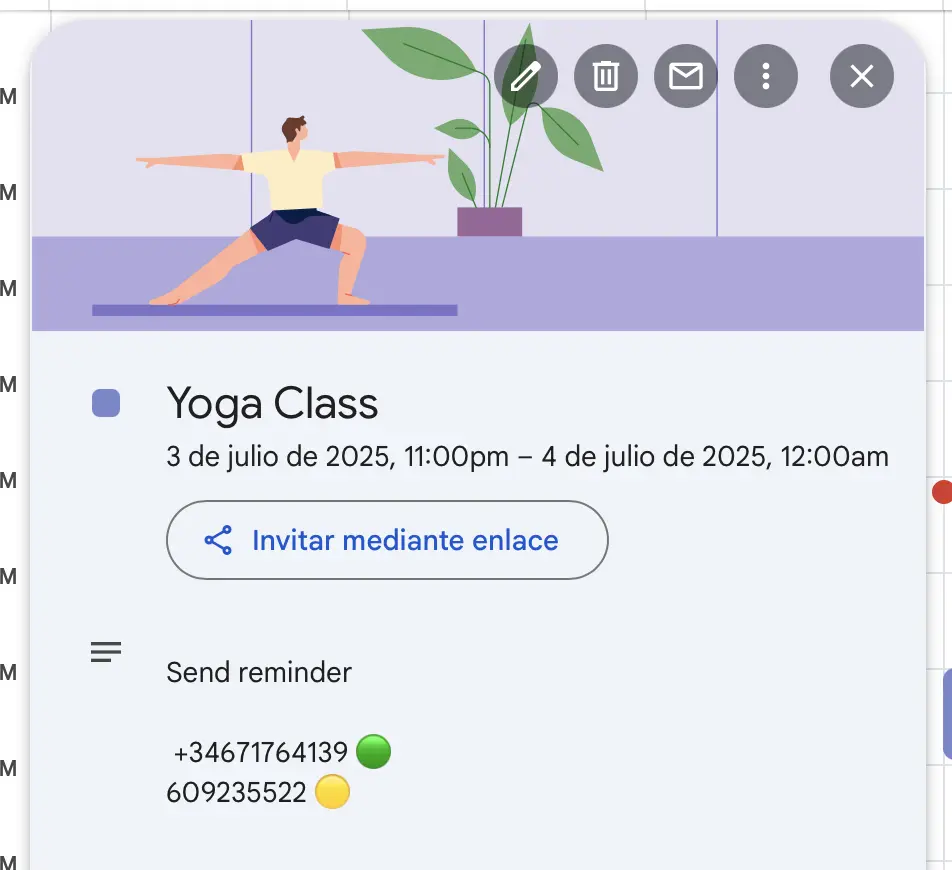
The phone numbers are listed one per line in the event description.
✅ Correct format:
+34609235522
+34633123456
+34647987654
❌ Incorrect format:
Numbers must be on separate lines, not separated by commas.
Step 3: Save the event
- Verify that all numbers are formatted correctly
- Save the event in Google Calendar
- The event will appear in RicordamiApp automatically
- Reminders will be sent to every number on the list
Tracking results
After the reminders go out, you can:
-
✅
Receive participant confirmations
If you use messages with confirmation buttons
-
📈
Spot attendance patterns
See which times and days get the best response from your group
Frequently asked questions
Q: Can I send reminders to more than 15 people?
A: No, the limit is 15 participants per event. For larger groups, split the event into multiple sessions.
Q: What happens if a number is incorrect?
A: The message won't be delivered to that number, but all other participants will receive the reminder normally.
Q: Can I modify the participant list after creating the event?
A: Yes. Edit the event description in Google Calendar to add or remove numbers. Changes sync automatically.
Q: Can I customize the message for each participant?
A: No, the same message goes to all participants in the event. For personalized messages, create separate events.