How to use RicordamiApp with shared team calendars
Why use RicordamiApp as a team?
- One account manages appointments for the whole team
- Each team member manages their own calendar
- All reminders sent automatically from a single dashboard
- One subscription covers everyone, no need for multiple accounts
- Works well for medical offices, salons, and wellness centers
How shared calendars work
RicordamiApp uses Google Calendar's shared calendars to coordinate your team. Here's the typical setup:
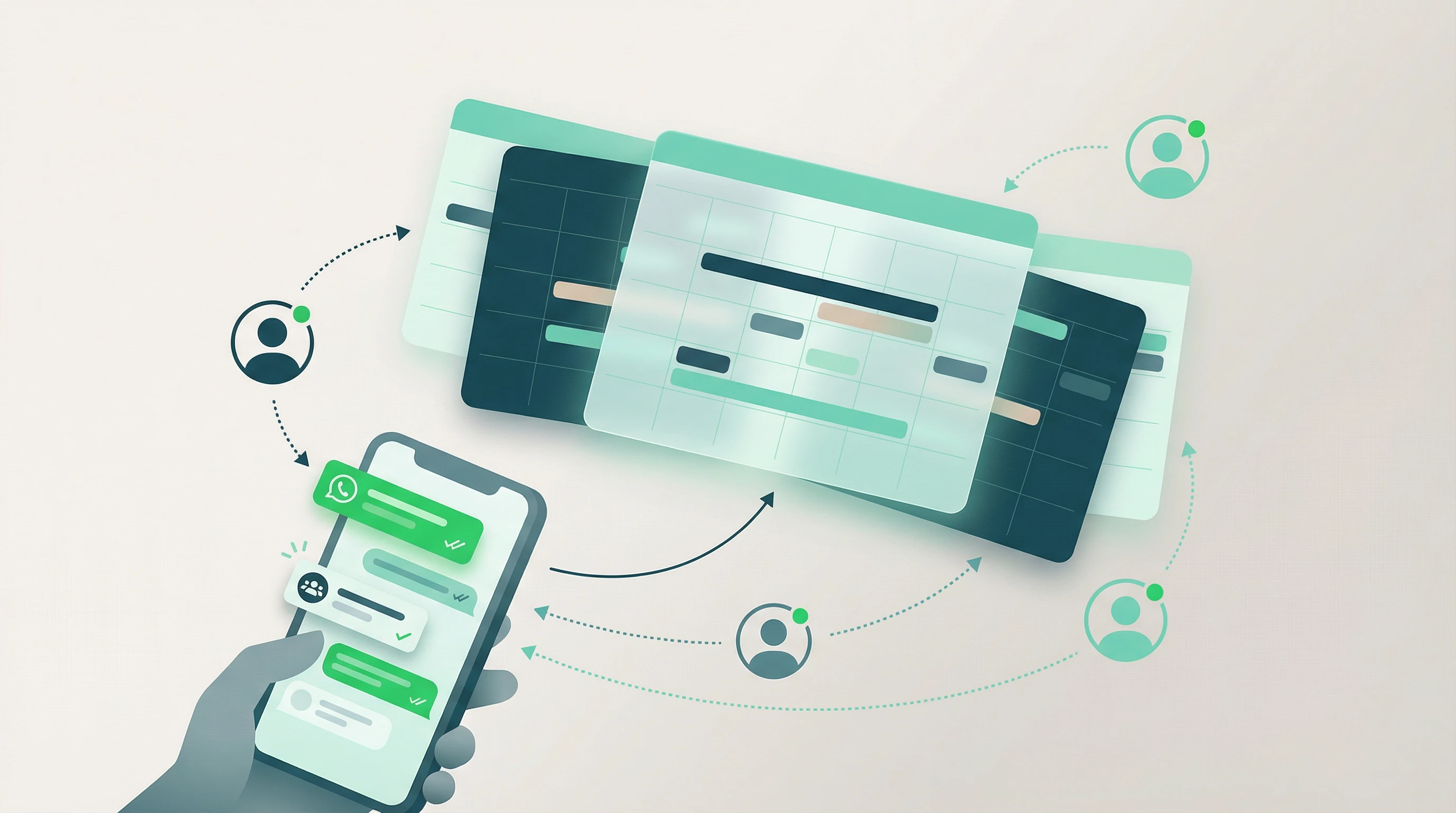
- User A: The RicordamiApp account owner (e.g., the practice owner)
- User B: A team member who shares their calendar with User A
- User B creates appointments in their Google Calendar
- User A sees those appointments through the shared calendar
- RicordamiApp sends WhatsApp reminders for all appointments automatically
Tip: This setup works well for practices where each team member manages their own calendar, but reminders are handled centrally.
Step 1: Share the calendar (User B)
The team member needs to share their calendar with the RicordamiApp account owner:
-
Open Google Calendar
Go to calendar.google.com -
Select the calendar to share
In the left sidebar, find "My calendars" and hover over the calendar you want to share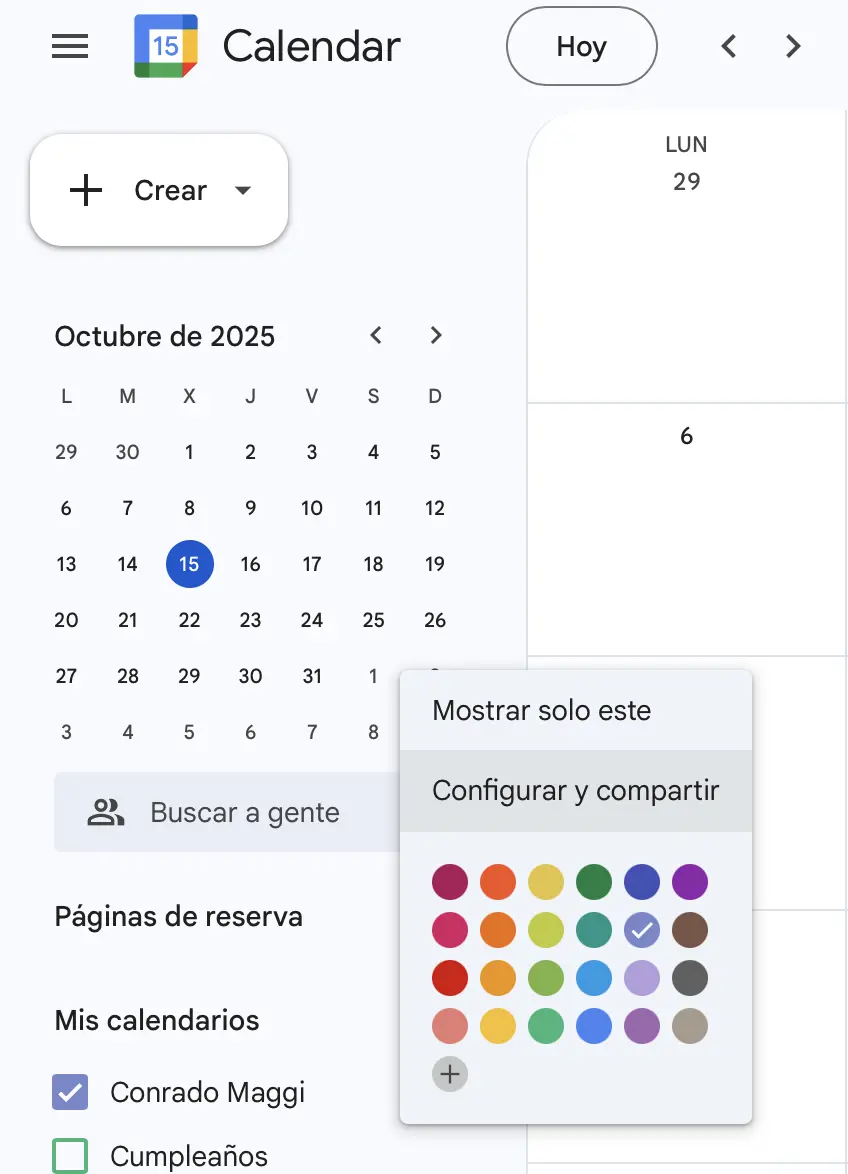
-
Open sharing settings
Click the three dots next to the calendar name and select "Settings and sharing" -
Add the person
In the "Share with specific people" section, click "+ Add people".
Enter the email address of User A (the RicordamiApp account owner).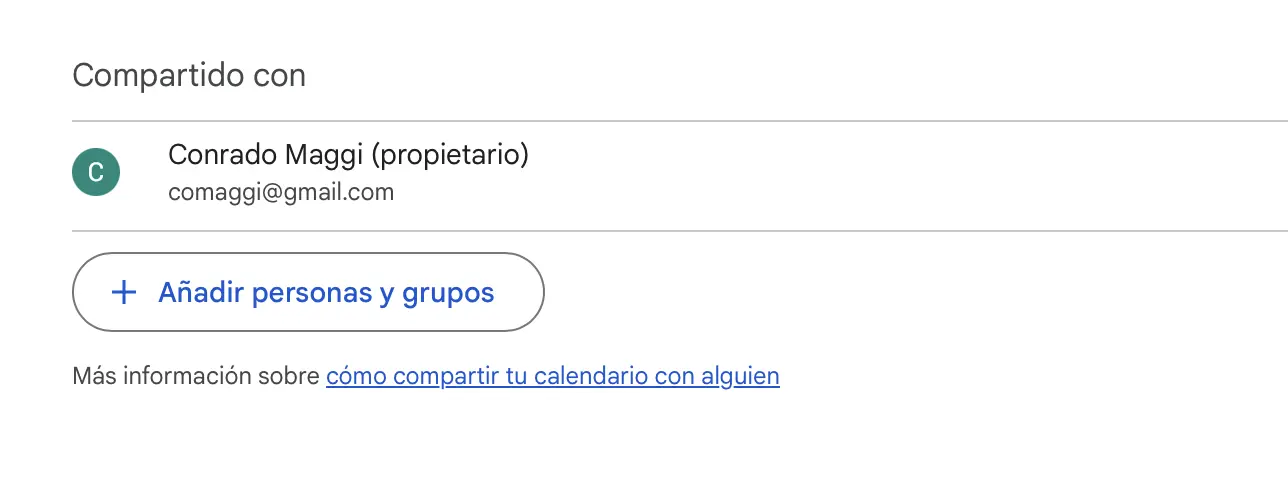
-
Set permissions
Select "See all event details" or "Make changes to events".
Note: "See all event details" is enough for RicordamiApp to work correctly. -
Send the invitation
Click "Send" to confirm
Step 2: Accept and connect (User A)
The RicordamiApp account owner accepts the invitation and connects the calendar:
-
Accept the invitation
User A will receive an email from Google Calendar with the sharing invitation.
Click "Add this calendar" in the email. -
Verify the shared calendar
Go to Google Calendar and check that the shared calendar appears in the "Other calendars" section. -
Log in to RicordamiApp
Go to recordarapp.com and sign in to your account. -
Add the shared calendar
Go to your account settings or the calendars section.
Click "Add calendar" or "Connect calendar". -
Select the shared calendar
In the list of available calendars, you'll find the calendar shared by User B.
Select it to activate automatic reminders.
For more details on connecting Google calendars, see the official Google guide.
Step 3: Managing appointments
Once everything is connected, here's how the day-to-day works:
User B (team member)
- Creates a new appointment in their Google Calendar
- Adds the appointment details (title, time, etc.)
- Includes the client's phone number in the event description
Example event description:
Haircut and styling - Maria Perez
Phone: +34 666 123 456
Notes: Client prefers gentle shampoo
User A (RicordamiApp account owner)
- Sees all appointments from shared calendars in RicordamiApp automatically
- No action needed. Reminders are sent on their own.
- Can monitor confirmations and cancellations from one dashboard
- Can add or edit phone numbers if needed
Supported phone number formats
RicordamiApp recognizes phone numbers in these formats:
- With international prefix:
+34 666 123 456 - With country code:
34 666 123 456 - Number only:
666 123 456 - Without spaces:
666123456
The number is extracted from the event description automatically, regardless of format. To customize your reminder text, try the reminder message generator.
What your team gets from this setup
Team autonomy
Each member manages their own appointments without needing access to RicordamiApp
Lower cost
One RicordamiApp subscription covers the entire team instead of separate accounts per person
One dashboard for everything
The account owner sees all appointments and confirmations in one place
Automatic sync
Changes in Google Calendar are reflected in RicordamiApp within minutes
Common use cases
Medical office
- Each doctor has their own calendar
- The receptionist manages the RicordamiApp account
- Reminders go out automatically for all doctors' appointments
Beauty salon
- Each hairstylist manages their own calendar
- The owner connects all calendars to RicordamiApp
- Clients receive reminders with their specific appointment details
Wellness center
- Massage therapists, estheticians, and instructors each have their own calendar
- The front desk manages reminders centrally
- Each professional keeps full control of their schedule
Frequently asked questions
How many calendars can I connect?
There's no limit. You can add every calendar shared by your team members.
Do team members need a RicordamiApp account?
No. Only the account owner needs a RicordamiApp subscription. Team members only use Google Calendar.
What happens if a team member modifies an appointment?
Changes sync automatically. If the time or date changes, the reminder updates to match.
Can I see who created each appointment?
Yes. RicordamiApp shows the source calendar for each appointment, so you can identify which team member created it.
Can team members see the reminders that were sent?
Team members see confirmations and cancellations in their Google Calendar. The account owner can also share the monitoring dashboard if needed.
What happens if I stop sharing a calendar?
RicordamiApp stops sending reminders for appointments on that calendar automatically.
Is sharing a calendar secure?
Yes. You control exactly what permissions to grant and can revoke them at any time. RicordamiApp only reads the event data it needs to send reminders.